
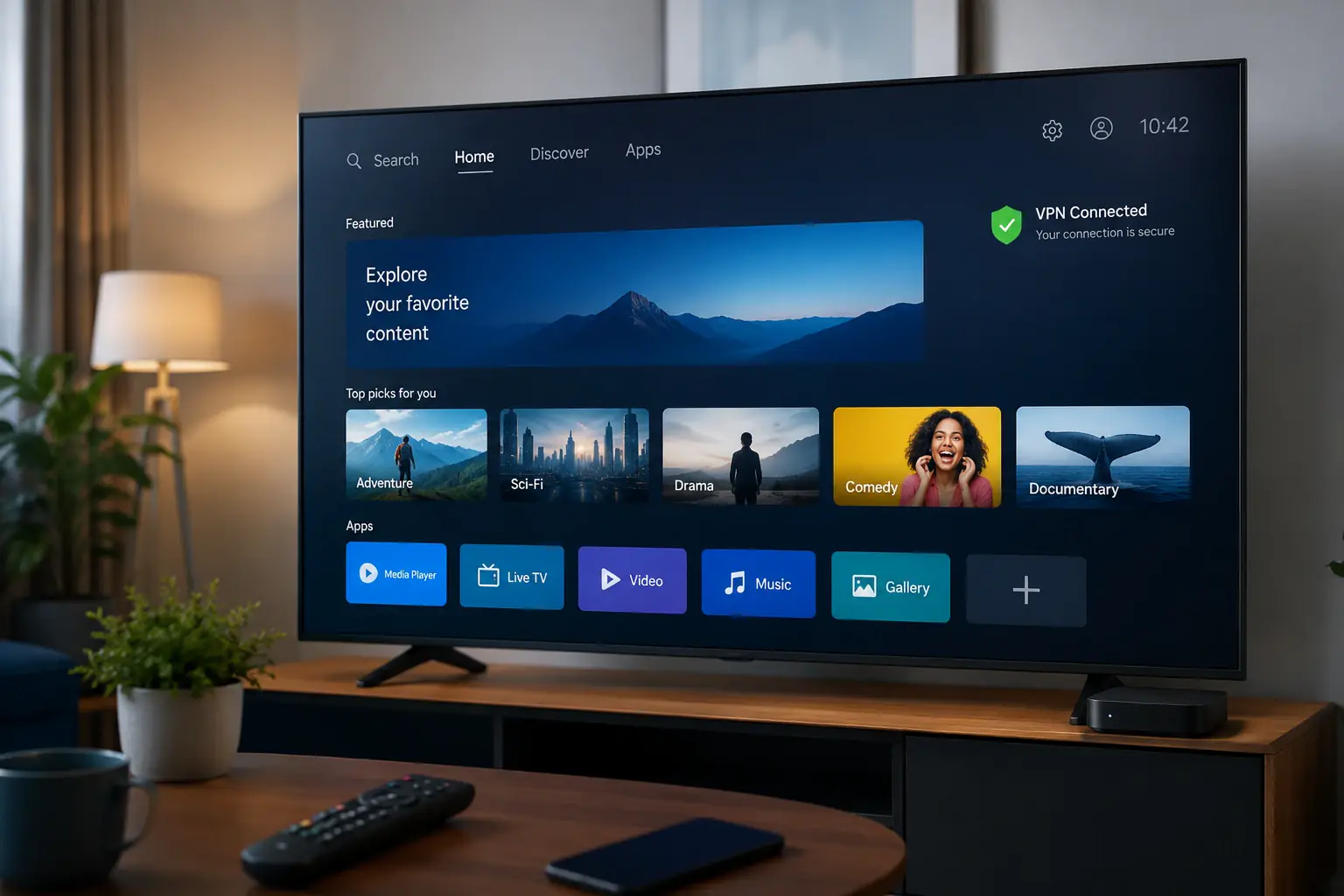
Pivot VPN for Smart TV and Android TV: one subscription, every screen
Your TV sits in the living room, but the internet behind it acts like a tourist with the wrong passport. Apps refuse to install, libraries shrink, sports go dark, and the buffering wheel becomes part of the furniture. Pivot VPN fixes that without turning your TV into a side project. The same account that protects your phone, laptop and tablet also runs natively on Android TV, and reaches Smart TVs that do not accept a VPN app directly. One subscription, every screen, no extra math.
This page is a straight product walkthrough. What Pivot VPN does on the big screen, how it does it, what to expect, and where people usually get stuck.
What you actually need from a TV VPN
A VPN for a TV is judged by three boring numbers and one feeling. The numbers: real download throughput on your couch (not in a lab), time-to-connect when you press the remote, and how often the tunnel survives an idle night without dropping. The feeling: whether your evening still feels like watching TV, or like managing infrastructure.
Pivot VPN is tuned for that last part. The Android TV build is a real TV app, not a phone app stretched sideways - remote-first navigation, large focus states, a single “Connect” tile, and a server list you can fly through with the D-pad. On Smart TVs that do not run third-party VPN apps (most non-Android models), Pivot VPN works at the router level or through a hotspot from your phone or laptop, so the protection is transparent to the TV. Either way, the TV does not know it is on a VPN. It just sees fast, stable internet.
The protocol stack matters here. Pivot VPN uses WireGuard as the default, with OpenVPN as a fallback for restrictive networks. WireGuard is what makes 4K viable: low overhead, fast handshakes, and a tunnel that wakes up instantly when the TV comes out of standby. If your router or ISP throttles UDP, the app shifts protocols without forcing you to dig through settings.
How Pivot VPN delivers across every device
One account on Pivot VPN covers Android, iOS, Windows, macOS, Linux and Android TV. There is no separate “TV plan”. You sign in on the TV with the same credentials, or scan a pairing code from your phone, and the connection is live in under a minute.
For Smart TVs without a VPN app - older LG, Samsung Tizen, most Roku and budget brands - there are three clean paths:
- Router-level VPN: install Pivot VPN on a compatible router (or a small travel router behind the TV), and every device on that network is covered, including the TV, the console and the smart speaker. Pivot VPN supports WireGuard config export for routers that accept it.
- Phone or laptop hotspot: turn your phone, laptop or tablet into a Wi-Fi hotspot with Pivot VPN active, then point the TV at that hotspot. Useful in hotels and when traveling.
- Cast from a protected device: open a stream on your phone or laptop (with Pivot VPN on) and cast to the TV. The session runs through the protected device, not the TV’s own network stack.
The point is that the subscription does not change. A family with one Android TV in the living room, an iPhone, a Windows laptop and an iPad gets all of them under the same Pivot VPN account, simultaneously, without paying per device.
Key features that actually matter in the living room
A TV is not a phone. The features that matter here are the ones that protect the watching experience, not the ones that look good on a feature list.
Auto-connect on boot. The Android TV app reconnects the second the TV powers on. You do not see a “tap to connect” screen between turning on the TV and opening your library. If the tunnel ever drops, the kill switch holds traffic until it is back, so half-connected requests do not leak to the ISP and trigger the wrong region for the app.
Split tunneling on the TV. Local services - your media server on the LAN, casting from a phone, a smart speaker handoff - should not go through the VPN. Pivot VPN’s split tunneling lets you keep local traffic local while streaming apps run through the chosen server. That keeps Chromecast and AirPlay-equivalent flows working naturally.
Server selection that respects bandwidth. Pivot VPN’s server list on Android TV shows latency in milliseconds and load as a percentage, not as five-star icons. For 4K HDR, you want a server geographically close to the content’s origin with low load. The app sorts by both, and a “Smart Location” option picks one for you.
No-logs operation. Pivot VPN does not store connection logs, browsing history or DNS queries tied to your account. For a TV, that matters because TVs are chatty - they phone home constantly. The VPN should not become a second telemetry channel.
DNS handled inside the tunnel. Pivot VPN runs its own resolvers inside the encrypted tunnel, which prevents the TV’s hardcoded DNS (a common trick on Smart TVs) from leaking your real location and pulling the wrong content library.
Step-by-step: getting Pivot VPN onto your TV
For Android TV and Google TV devices (Chromecast with Google TV, Nvidia Shield, Sony Bravia with Android TV, TCL/Hisense Android TV models):
- Open the Play Store on the TV and search for Pivot VPN. Install the native app.
- Sign in with your existing Pivot VPN account, or scan the QR pairing code shown on your phone’s Pivot VPN app.
- Approve the system VPN permission once (this is an Android prompt, not Pivot VPN’s).
- Pick a server or tap Smart Location. Toggle auto-connect on.
- Open your streaming app. That is it.
For Smart TVs without an app store that accepts VPNs (Samsung Tizen, LG webOS, Roku, Fire TV without sideload, older models):
- Install Pivot VPN on your router, or on a small dedicated travel router placed between your main router and the TV.
- Or, on a phone or laptop, enable Pivot VPN, then start a hotspot from that device and connect the TV to it.
- Restart the TV once to refresh its DNS and IP. Open your streaming app.
For travel and hotels, where the TV is not yours and the network is hostile, the hotspot route is the most reliable. Pivot VPN on a phone, hotspot on, TV connected to the hotspot, done.
Common mistakes that ruin a TV VPN setup
The biggest one: installing a VPN app on the TV and leaving DNS on the TV’s default. Many Smart TVs ignore the system DNS and use hardcoded resolvers from the manufacturer. The fix is either Pivot VPN’s in-tunnel DNS (default in the Android TV app) or blocking the TV’s hardcoded DNS at the router.
The second: picking a server on the other side of the planet because the content “is there”. For most major libraries you want a server in a large city near the content’s CDN edge, not a remote one. Pivot VPN’s load and latency indicators make this obvious - sort by latency first, then by load under 70 percent.
The third: forgetting that the TV reboots into a different state than the phone. If auto-connect is off, the TV will happily stream over the bare ISP connection for a few seconds before you notice. Turn auto-connect on and leave it on.
The fourth: running a VPN on the router and also on the TV. Double-tunneling wastes throughput and confuses some apps. Pick one layer.
Realistic expectations on speed and quality
On a 100 Mbps home connection with Pivot VPN on Android TV and a nearby server, expect 85 to 95 Mbps of usable throughput. That is enough for 4K HDR on every major streaming service, with headroom. On gigabit, expect 400 to 700 Mbps depending on the TV’s own network chip - most TVs cap themselves long before the VPN does.
Connect time on Android TV: under 2 seconds on WireGuard with a saved server. Cold boot to streaming: under 10 seconds end to end, including the TV’s own boot.
Buffering on long sessions: rare. Pivot VPN keeps the tunnel alive through standby and reconnects cleanly when the TV wakes. If a session does drop, the kill switch prevents the silent fallback to the ISP that usually causes the “why is this suddenly the wrong region” problem.
When a TV VPN is worth it, and when it is not
It is worth it when you want a consistent library across travel, when your ISP throttles streaming, when you watch sports that are blacked out in your region, when your TV is on a shared or untrusted network, or when you simply do not want the TV’s manufacturer building a profile of your viewing.
It is not worth it if your only goal is to “speed up” a connection that is already saturated by your own usage - a VPN cannot create bandwidth that is not there. And it is not a magic unlock for every service every day; libraries change, and the honest answer is that Pivot VPN’s job is to give you a clean, fast, private path, not to promise a specific show on a specific Tuesday.
For the rest - the daily, boring, “I just want to watch something” use case - Pivot VPN on the TV is the version of a VPN that disappears into the background. You press the remote, the show starts. That is the whole product.
Frequently asked questions
How much does Pivot VPN cost for Smart TV and Android TV use? +
There is no separate TV plan. One Pivot VPN subscription covers Android TV, Smart TV (via router or hotspot), phones, laptops and tablets at the same time. You pay once and use the same account across every device in the household, with longer plans bringing the monthly price down.
What do I need to run Pivot VPN on my TV? +
For Android TV or Google TV devices, you need the TV itself, a Pivot VPN account, and the app from the Play Store - nothing else. For Smart TVs without a VPN app (most Samsung, LG, Roku and older models), you need either a router that supports VPN configs, or a phone or laptop that can share a hotspot with Pivot VPN active.
Will Pivot VPN slow down 4K streaming on my TV? +
On a typical home connection with a nearby server, expect to keep 85 to 95 percent of your raw speed, which is well above the 25 Mbps that 4K HDR needs. WireGuard is the default protocol for exactly this reason - low overhead, fast handshakes, stable long sessions. Most TVs hit their own hardware ceiling before Pivot VPN becomes the bottleneck.
Is it safe to use Pivot VPN on my TV and other devices? +
Yes. Pivot VPN encrypts traffic with modern protocols (WireGuard by default, OpenVPN as fallback), keeps no connection or browsing logs tied to your account, runs its own DNS inside the tunnel to prevent leaks, and includes a kill switch on every platform that supports it. The same protections that apply on your phone or laptop apply on the TV.
Why is Pivot VPN a good fit specifically for TVs? +
Because the Android TV app is built for a remote, not a touchscreen - large focus states, D-pad navigation, one-tap connect, auto-connect on boot. The server list shows real latency and load instead of marketing labels, and split tunneling keeps local casting and media servers working normally. On Smart TVs without an app, the router and hotspot routes are documented and predictable.
How do I start using Pivot VPN on my TV? +
On Android TV or Google TV, install Pivot VPN from the Play Store, sign in (or pair with a QR code from your phone), approve the system VPN prompt once, pick a server, and open your streaming app. On other Smart TVs, install Pivot VPN on a compatible router, or start a hotspot from a phone or laptop with Pivot VPN active and connect the TV to that hotspot.
Get Pivot VPN — free for 7 days
No credit card upfront. Cancel anytime.
Try Pivot VPN