
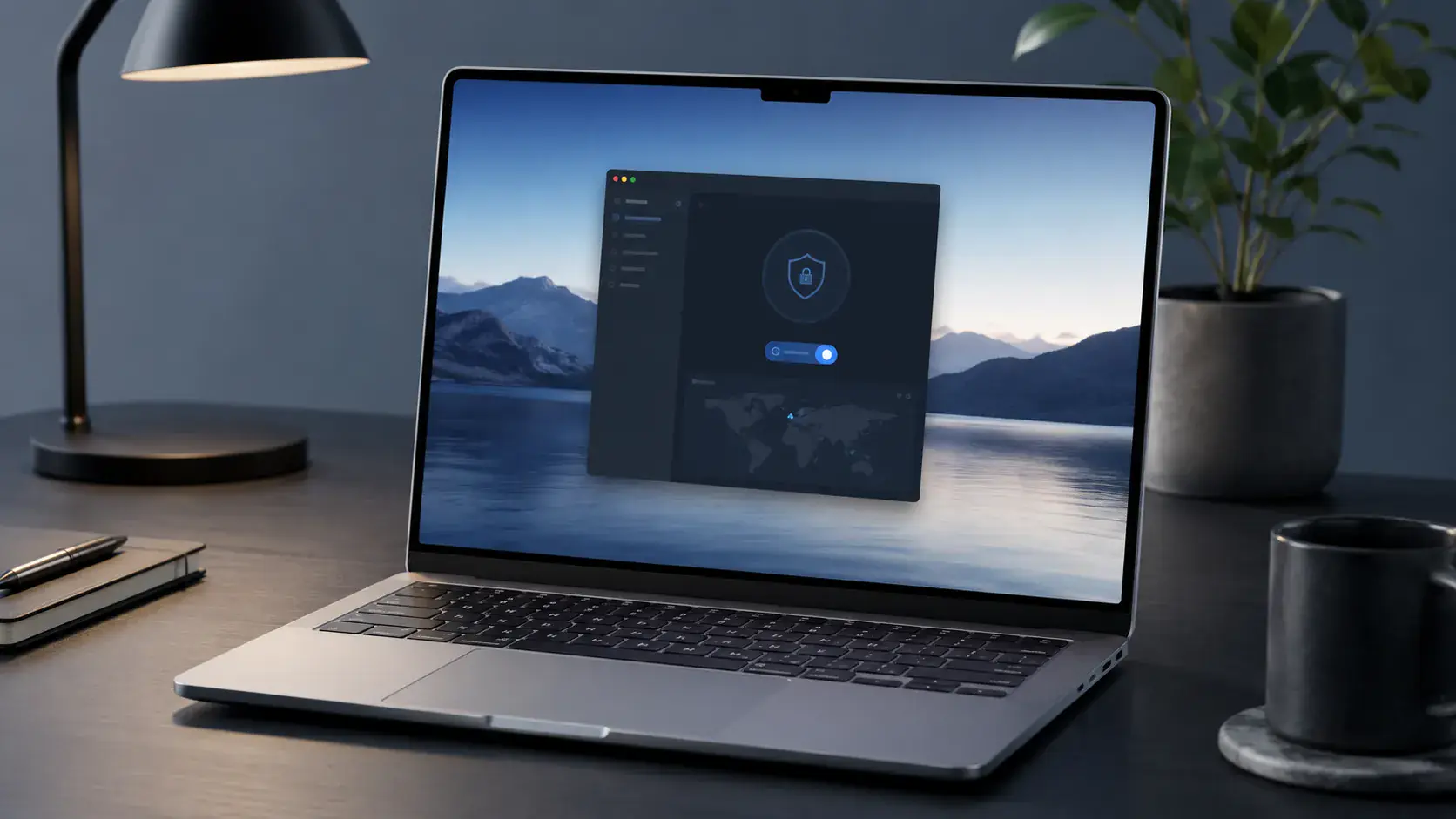
Download Pivot VPN for macOS
Pivot VPN turns your Mac into a private workstation. Whether you are working from a MacBook Air in a coffee shop, streaming on an iMac at home, or jumping between Wi-Fi networks with a Mac mini in a co-working space, the macOS app encrypts every packet that leaves your machine and routes it through one of our global servers. Below is everything you need to download, install and configure Pivot VPN on macOS the right way — plus how the same account extends to your iPhone, Android phone, Windows laptop, Linux box and Android TV.
Who Pivot VPN for macOS is for
Pivot VPN is built for people who actually use their Mac for serious things: developers pushing to remote git servers, designers shipping files to clients, journalists working with sensitive sources, students on hostile campus networks, and travelers who refuse to trust hotel Wi-Fi. If you do online banking on your MacBook, log into corporate dashboards, or simply want streaming services to stop guessing your location, the macOS app gives you a hardened tunnel without slowing down your workflow.
The same account also follows you off the Mac. You can keep the tunnel running on your iPhone over LTE, on your Windows gaming rig, on a Linux home server, and on an Android TV in the living room. One subscription, every platform, no extra fees per device.
System requirements for macOS
Pivot VPN runs on a wide range of Macs — both Apple Silicon and Intel:
- macOS 11 Big Sur or newer (macOS 12 Monterey, 13 Ventura, 14 Sonoma and 15 Sequoia are fully supported).
- Apple Silicon (M1, M2, M3, M4) and Intel-based Macs.
- Roughly 150 MB of free disk space.
- An active internet connection for the first sign-in.
- Administrator rights on your Mac (needed once, to install the system VPN profile).
The app is a native, signed and notarized macOS binary. There is no Rosetta dependency on Apple Silicon, no Java runtime, no browser extension required. It launches in under a second and idles at a fraction of a percent of CPU.
Install Pivot VPN from the official site
The recommended path is to download directly from our website. This guarantees you get the latest build, signed with our developer certificate.
- Open Safari, Chrome or your browser of choice and go to the official Pivot VPN website.
- Click the macOS download button. A file named something like
PivotVPN-macOS.dmgwill be saved to your Downloads folder. - Double-click the
.dmgfile to mount it. A Finder window will open showing the Pivot VPN icon and a shortcut to the Applications folder. - Drag the Pivot VPN icon into the Applications folder.
- Eject the mounted disk image (right-click the disk in Finder and choose Eject).
- Open Launchpad or the Applications folder and double-click Pivot VPN.
- On first launch, macOS will ask you to confirm the app downloaded from the internet. Click Open.
- When prompted, allow Pivot VPN to add a VPN configuration. You will be asked for your Mac password — this is macOS itself approving the system VPN profile, not us collecting credentials.
Install Pivot VPN from the Mac App Store
If you prefer App Store installs and automatic updates handled by Apple, Pivot VPN is also available there.
- Open the Mac App Store from the Dock or Launchpad.
- Search for Pivot VPN.
- Click Get, then Install. Authorize with Touch ID, your Apple Account password, or your watch.
- Once installed, launch the app from Launchpad.
- Approve the VPN configuration when macOS asks — same one-time admin prompt as the direct download.
Both versions are functionally identical. The direct download sometimes gets new features a few days earlier; the App Store version is convenient if you already manage everything through Apple.
First launch walkthrough
The first time you open Pivot VPN on macOS, the interface is intentionally simple — one big Connect button and a server list.
- Sign in with your Pivot VPN account, or create one from the welcome screen. If you already use Pivot VPN on your phone or another laptop, just sign in with the same credentials.
- The app will auto-select the fastest available server based on your current network. Hit Connect, and within a second or two the status light goes green and a small VPN badge appears in the macOS menu bar.
- Want a specific region for streaming or testing? Open the server list, search by country or city, and click to connect. Favorites are remembered across sessions.
- The menu bar icon gives you one-click connect, disconnect, and server switching without opening the main window.
The first connection also triggers a quick leak self-test in the background. If anything looks off — DNS leaking outside the tunnel, IPv6 misrouted, MTU too high for your link — the app will quietly correct it.
macOS-specific settings worth turning on
Pivot VPN ships with safe defaults, but a few macOS-specific switches are worth knowing about.
- Kill Switch: under Settings, enable the kill switch so that if the VPN tunnel drops for any reason, macOS will block all outbound traffic until the tunnel reconnects. No accidental leaks while you grab coffee.
- Auto-connect on untrusted Wi-Fi: tell Pivot VPN which networks you trust (your home SSID, your office) and it will automatically connect whenever you join anything else — airports, hotels, conferences.
- Launch at login: have Pivot VPN start with macOS so the tunnel is up before any other app tries to phone home.
- Split tunneling: route specific apps through the VPN and let others use your normal connection. Useful when a local printer or AirPlay device refuses to talk through the tunnel.
- Custom DNS: pick our private DNS (default), your own resolver, or your company’s internal DNS for hybrid work setups.
- Protocol choice: WireGuard is the default for speed; switch to OpenVPN if you are on a restrictive network that throttles UDP.
Troubleshooting on macOS
Most issues on Mac come down to one of three things — permissions, conflicting network tools, or an outdated macOS build. A quick checklist:
- “Could not add VPN configuration”: open System Settings, go to VPN, and remove any old Pivot VPN profile, then reopen the app.
- App will not open after download: in System Settings, Privacy and Security, scroll down and click Open Anyway next to the Pivot VPN entry.
- Slow speeds: switch protocol from OpenVPN to WireGuard, or pick a server geographically closer to you.
- Wi-Fi captive portal blocked: temporarily disconnect the VPN, sign into the hotel or airport portal, then reconnect.
- Conflicts with other VPN clients: only one VPN profile can be active at a time on macOS. Disable competing clients before connecting.
- Firewall or proxy at work: try the obfuscated server list, which disguises VPN traffic as regular HTTPS.
If something still misbehaves, the in-app diagnostic report bundles the logs you need to send to support — no manual hunting through Console.
Post-install security checklist
Once Pivot VPN is installed on your Mac, take two minutes to lock things down:
- Turn on the kill switch.
- Enable auto-connect on untrusted Wi-Fi.
- Set the app to launch at login.
- Confirm DNS is going through Pivot VPN (the app has a built-in leak test).
- Install Pivot VPN on your other devices — iPhone, Android phone, Windows laptop, Linux machine, Android TV — using the same account. One subscription covers all of them.
- Enable two-factor authentication on your Pivot VPN account from the web dashboard.
That is it. Your Mac is now a closed environment from a network standpoint: encrypted DNS, encrypted traffic, no leaks, no surprises — and the same protection follows you to every other device you own.
Frequently asked questions
What are the system requirements to run Pivot VPN on macOS? +
Pivot VPN supports macOS 11 Big Sur and newer, including Sonoma and Sequoia. It runs natively on both Apple Silicon (M1, M2, M3, M4) and Intel Macs, needs about 150 MB of disk space, and requires admin rights only once to install the system VPN profile. The same account also works on iOS, Windows, Android, Linux and Android TV.
Is it safe to download Pivot VPN from the official site instead of the Mac App Store? +
Yes. The macOS build on our website is signed with our Apple developer certificate and notarized by Apple, which means macOS Gatekeeper verifies the binary before it runs. If you prefer Apple-managed updates, the Mac App Store version is functionally identical — both are official sources.
Do I need a separate sign-in for the Mac app if I already use Pivot VPN on my phone? +
No. Pivot VPN uses one account across every platform. Sign in on macOS with the same email and password you use on your iPhone or Android phone, and your subscription, favorites and settings sync automatically across devices.
How many devices can I use with one Pivot VPN subscription? +
One Pivot VPN subscription covers all your personal devices — Mac, Windows PC, iPhone, Android phone, Linux machine and Android TV — at the same time. There are no per-device fees, so you can protect your entire household with a single account.
Will Pivot VPN slow down my MacBook or internet speed? +
On modern Macs the performance impact is minimal. The app idles at a fraction of a percent of CPU, and WireGuard — our default protocol — typically keeps 85 to 95 percent of your raw bandwidth. If you ever notice slowness, switching servers or protocols inside the app usually resolves it in seconds.
Can Pivot VPN on macOS help me access content that is blocked in my region? +
Yes. Choose a server in the country whose content you want to reach, hit Connect, and your Mac will appear to be browsing from that location. The same trick works on your iPhone, Android TV or any other device signed into your Pivot VPN account, so you can keep your library consistent across screens.
Get Pivot VPN — free for 7 days
No credit card upfront. Cancel anytime.
Try Pivot VPN