
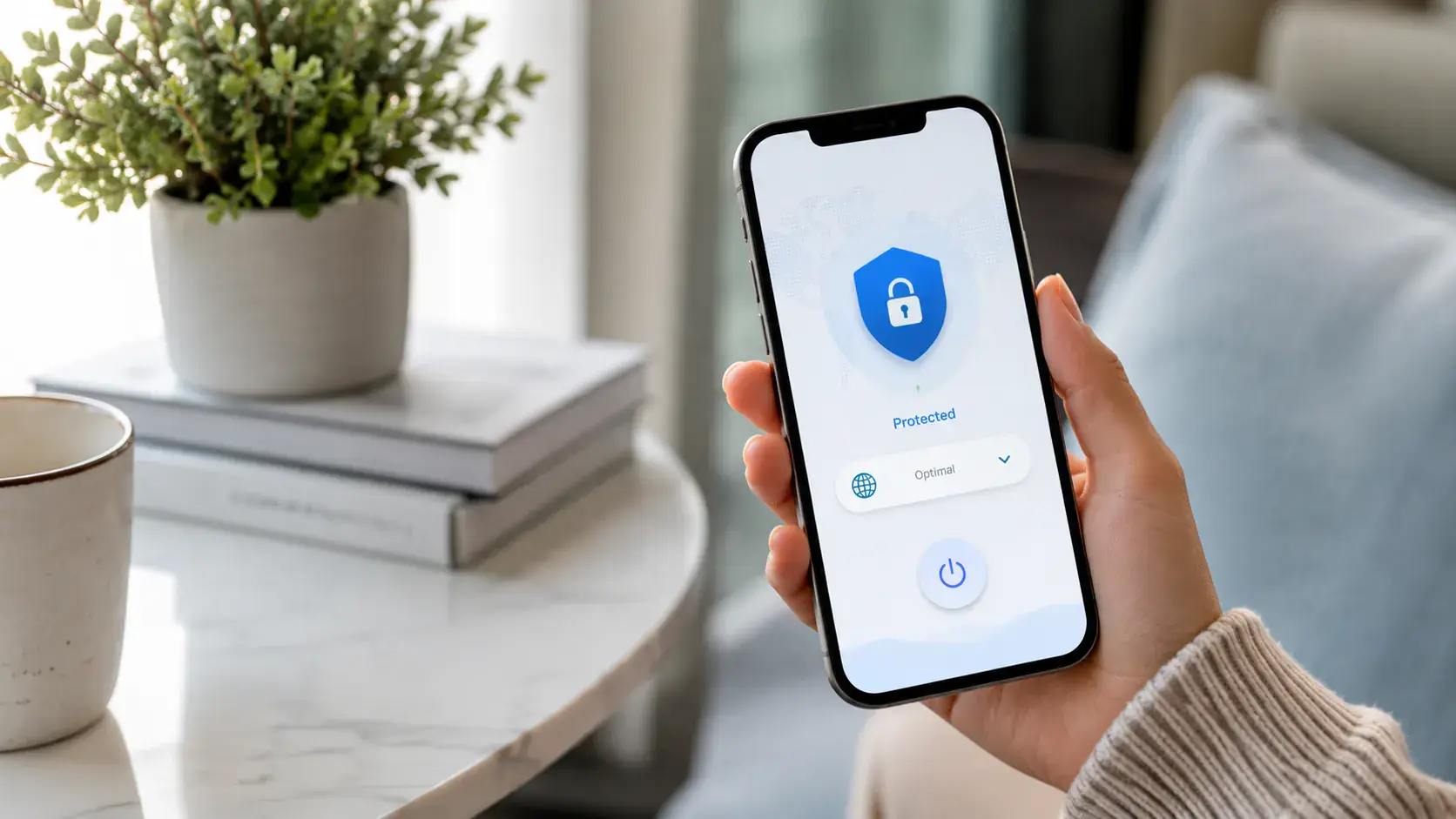
Download Pivot VPN for iOS
Pivot VPN for iOS turns your iPhone or iPad into a private, encrypted tunnel in under a minute. The app is built natively for iOS using the system VPN framework, which means it integrates with iOS exactly the way Apple intends — no jailbreaking, no custom profiles, no shady configuration files. Install it from the App Store, sign in, tap connect, and your traffic is protected on Wi-Fi, on cellular, and anywhere in between.
This page walks you through everything: who the app is built for, what your device needs, how to install it step by step, what happens on first launch, the iOS-specific settings worth flipping on, and how to fix the small handful of issues new users sometimes hit.
Who Pivot VPN for iOS is for
If you carry an iPhone or iPad and you connect to networks you do not personally control, this app is for you. That includes airport and hotel Wi-Fi, cafe hotspots, co-working spaces, university networks, and even the home networks of friends and family. It is also for people who travel and need to reach apps, banking services or streaming libraries from their home region while abroad. And it is for anyone who simply does not want their mobile carrier or ISP profiling their browsing.
Pivot VPN is intentionally minimal. There is no clutter, no twelve-tab settings panel, no daily upsell pop-up. You open it, you connect, you forget about it. The same account works on your iPhone, your iPad, your Mac, your Windows laptop, your Linux machine, your Android phone and your Android TV — one subscription, all your devices, no per-device fees.
System requirements for iOS
Pivot VPN runs on any modern iPhone or iPad. The exact baseline:
- iOS 14.0 or later on iPhone
- iPadOS 14.0 or later on iPad
- Roughly 60 MB of free storage for the app itself
- An Apple ID signed in to the App Store
- A working internet connection (Wi-Fi or cellular) for the initial download and sign-in
There are no hardware requirements beyond that. The app works on older iPhones still on iOS 14, on the latest Pro models, on every iPad generation that supports iPadOS 14+, and on the iPad mini and iPad Air. It is a universal binary, so the same download installs the right build for whichever device you are on.
How to install Pivot VPN from the App Store
Installation is the standard App Store flow. Nothing exotic.
- Unlock your iPhone or iPad and open the App Store.
- Tap the search tab at the bottom of the screen.
- Type Pivot VPN into the search bar and tap search.
- Find the official Pivot VPN listing in the results — the icon is the Pivot logo and the developer name is shown directly under the app title.
- Tap Get, then confirm with Face ID, Touch ID or your Apple ID password.
- Wait for the download to finish — usually a few seconds on a normal connection.
- Tap Open from the App Store, or find the Pivot VPN icon on your home screen and launch it from there.
That is the entire install. Because the app is distributed through the App Store, every binary is signed by Apple and scanned by their review pipeline. You are not sideloading anything, you are not trusting a random configuration profile, and you are not installing a root certificate. It is a clean, normal iOS app.
First-launch walkthrough
The first time you open Pivot VPN it walks you through a short onboarding. Here is what to expect.
- Welcome screen. A brief explanation of what the app does and a single button to continue.
- Sign in or create account. Enter the email and password tied to your subscription. If you do not have an account yet, you can create one in the same screen — email and a password is all it takes.
- VPN configuration prompt. iOS will pop up a system dialog asking you to allow Pivot VPN to add a VPN configuration. Tap Allow, then confirm with Face ID, Touch ID or your device passcode. This step is required by iOS for any VPN app and only happens once.
- Server selection. The app picks the closest fast server by default. You can change it at any time from the main screen by tapping the country name.
- Connect. Tap the large connect button. Within a second or two you will see the iOS VPN indicator in your status bar, and a confirmation inside the app showing your new IP and the active server.
That is it. You are protected. Close the app and go about your day — the tunnel keeps running in the background.
iOS-specific settings worth knowing
iOS handles VPNs a little differently than other platforms, and there are two settings that are worth understanding.
On-demand / always-on connection. Pivot VPN supports iOS on-demand rules, which is Apple’s equivalent of an always-on VPN. When enabled, iOS automatically re-establishes the tunnel whenever your device has internet access. You will find the toggle inside the app under Settings → Auto-connect. Turn it on if you want the VPN to come back up automatically after a reboot, after switching from Wi-Fi to cellular, or after your phone wakes from sleep.
Kill switch behavior on iOS. A traditional kill switch — the kind that blocks all traffic if the VPN drops — works slightly differently on iOS because Apple does not give third-party apps full firewall control. Pivot VPN uses on-demand rules to immediately re-dial the tunnel if it drops, which is the iOS-native way of achieving the same outcome. For most users this is invisible: the connection comes back so quickly that no app on the device sees unprotected traffic.
Trusted Wi-Fi. You can mark your home or office network as trusted so the VPN stays off there if you prefer. Open Settings → Trusted networks inside the app and add the SSIDs you do not need the tunnel on.
Troubleshooting common iOS issues
If something does not work on the first try, these are the fixes that solve the vast majority of cases.
- The connect button spins forever. Switch to a different server from the country list, then try again. Occasionally a single server is saturated; another one in the same region clears it instantly.
- No VPN icon in the status bar after connecting. Force-quit the Pivot VPN app (swipe up and flick it away), reopen it and reconnect. iOS sometimes loses sync with the VPN extension and a relaunch resolves it.
- Sign-in fails with “network error”. Make sure you are not already connected to another VPN profile in iOS Settings → General → VPN & Device Management. Two VPNs cannot run at the same time on iOS.
- App refuses to install or update. Check that your device has at least iOS 14 installed. From Settings → General → Software Update, install any pending iOS update and try the App Store again.
- Connection drops every few minutes on cellular. Enable Auto-connect inside Pivot VPN and disable iOS Low Data Mode for your carrier under Settings → Cellular → Cellular Data Options.
Post-install security checklist
Once Pivot VPN is up and running on your iPhone or iPad, take two minutes to harden the rest of your setup.
- Turn on Auto-connect inside Pivot VPN so the tunnel re-establishes automatically.
- In iOS Settings → Wi-Fi, tap the (i) next to public networks you have joined and turn off Auto-Join for any you do not fully trust.
- Enable iCloud Private Relay only if you are on Safari and understand it routes Safari traffic separately — Pivot VPN already protects everything else.
- Make sure Face ID / Touch ID and a strong passcode are set on the device itself. A VPN protects the network; the lock screen protects the hardware.
- Install Pivot VPN on your other devices too. The same account covers your Mac, your Windows or Linux laptop, your Android phone and your Android TV — protection on every device you actually use.
- Keep iOS up to date. Most “VPN suddenly stopped working” reports trace back to an iOS version that is two or three releases behind.
That is the whole flow. Download, sign in, allow the configuration, connect, and you are private on iOS — and on every other device you bring into the household.
Frequently asked questions
What iPhone or iPad do I need to run Pivot VPN? +
Any iPhone running iOS 14.0 or later, and any iPad running iPadOS 14.0 or later. That covers everything from older devices still on iOS 14 up to the newest Pro models. The same Pivot VPN account also works on Mac, Windows, Linux, Android and Android TV, so you can install it everywhere with one subscription.
Is the iOS app safe and where should I download it from? +
Always download Pivot VPN from the official Apple App Store. Every build is signed by Apple and passes their review pipeline, so you are not sideloading binaries or installing trust profiles. The app uses Apple's native VPN framework — no jailbreak, no custom certificate, no shady configuration files.
Do I need to sign in, and can I create an account inside the app? +
Yes, you sign in with the email and password tied to your subscription. If you do not have an account yet, you can create one directly on the first-launch screen in seconds. The same credentials then unlock the app on your iPhone, iPad, Mac, Windows or Linux laptop, Android phone and Android TV.
How many devices can I use one subscription on? +
One Pivot VPN subscription covers all of your personal devices across iOS, macOS, Windows, Linux, Android and Android TV. There is no per-device fee. Install it on your iPhone, then on your laptop and your TV — the same account just signs in everywhere.
Will Pivot VPN slow my iPhone's internet down? +
Modern VPN protocols add only a small overhead, and on a nearby server most users do not notice any difference in everyday browsing, streaming or video calls. If you ever feel a slowdown, switch to a closer server from the country list inside the app — that resolves almost every speed concern on iOS and cellular.
Can I use Pivot VPN if my country blocks VPNs or restricts certain apps? +
Pivot VPN includes protocols designed to work on restrictive networks where standard VPN traffic is filtered. If a server is unreachable, try a different country from the list, and enable Auto-connect so the tunnel re-establishes the moment your network changes. The same approach works on your Mac, Windows machine and Android devices too.
Get Pivot VPN — free for 7 days
No credit card upfront. Cancel anytime.
Try Pivot VPN