
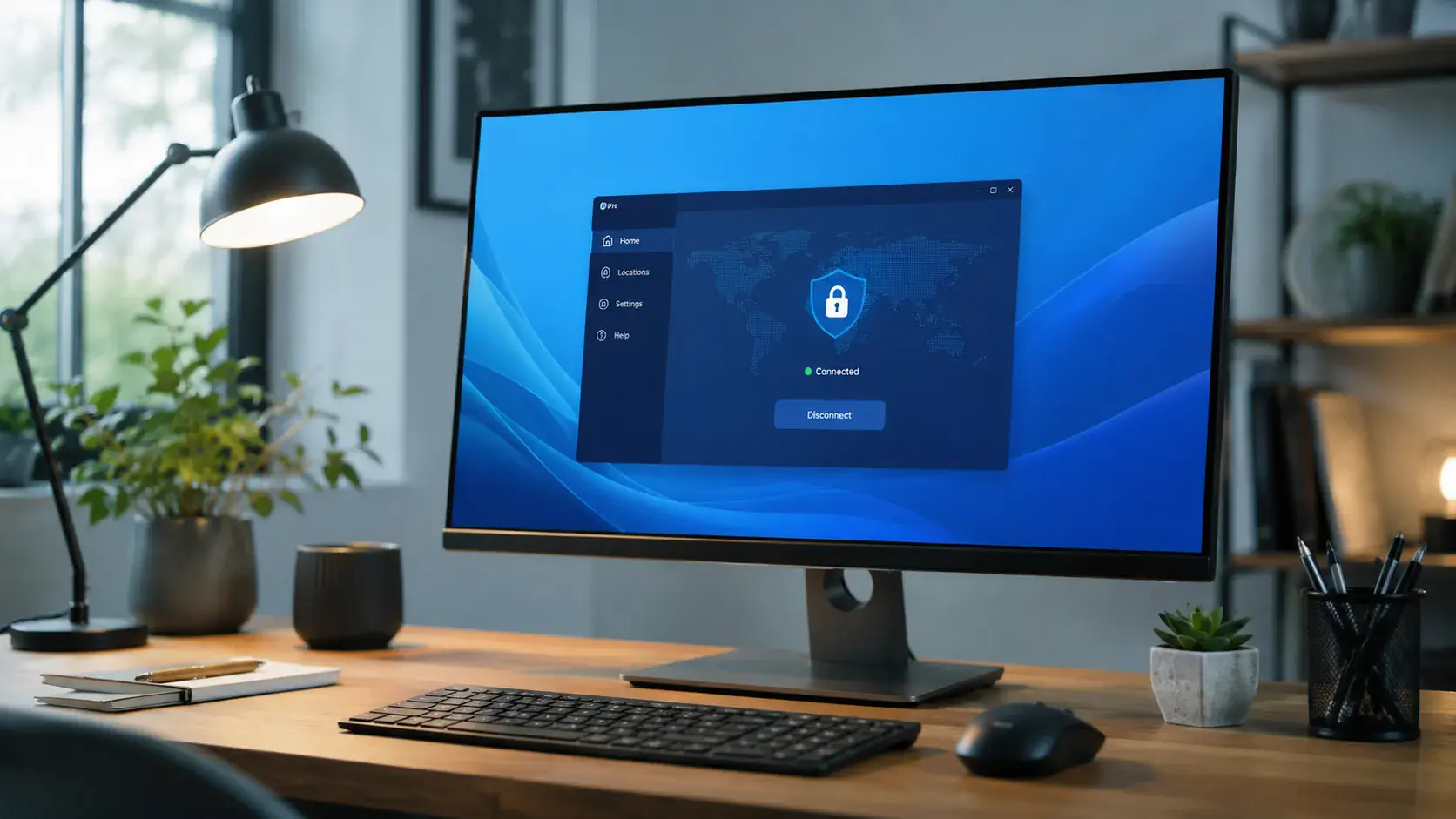
Download Pivot VPN for Windows
Pivot VPN for Windows is the native desktop client built for people who actually use their laptop for work, travel and streaming. It is signed, lightweight and behaves like a proper Windows app: it sits in the system tray, respects your network adapters and reconnects on its own when you wake from sleep. One subscription unlocks the same client on your Windows PC, MacBook, iPhone, Android phone, Linux box and Android TV, so the setup you do once on your laptop carries over to every other device you own.
Who the Windows app is for
The Windows build is aimed at three groups of users. First, remote workers and freelancers who need a stable encrypted tunnel for video calls, payroll portals and client logins on hotel and cafe Wi-Fi. Second, travellers who keep their home email, banking and streaming services accessible while the country around them changes. Third, anyone who simply wants their ISP, network admin and random advertisers to stop reading the contents of their browsing sessions.
If you also use a phone, a Mac or a TV in the living room, the Windows install is usually the place to start: a laptop screen makes account setup, server selection and protocol tweaks much easier than a small touchscreen, and the moment you sign in everywhere else you get the same configuration mirrored over.
System requirements
Pivot VPN runs on:
- Windows 11 (all editions, x64 and ARM64)
- Windows 10 version 1809 or newer, 64-bit
- Roughly 150 MB of free disk space
- 2 GB RAM minimum, 4 GB recommended for heavy streaming
- An active internet connection (wired, Wi-Fi or mobile tethering)
- Administrator rights for the first install (to register the TUN network adapter)
The client is fully compatible with Windows Defender, BitLocker, Hyper-V and the built-in Windows Firewall. It also coexists peacefully with corporate antivirus suites; if your IT department uses application allow-listing, point them at the signed PivotVPN.exe binary in C:\Program Files\Pivot VPN.
Install Pivot VPN on Windows in five steps
Always download the installer from the official Pivot VPN website. Third-party download mirrors can repackage installers with bundled adware, so stick to the source.
- Open the official Pivot VPN site in your browser and click the Windows download button. The file is named
PivotVPN-Setup.exeand is digitally signed. - Double-click the downloaded file. When Windows shows the User Account Control prompt, check that the publisher reads as Pivot VPN and click Yes.
- Accept the license terms and choose an install location. The default
C:\Program Files\Pivot VPNis fine for almost everyone. - Let the installer add the TUN virtual network adapter. This is the component that actually carries your encrypted traffic, and Windows will briefly flash a driver installation notification while this happens.
- When the installer finishes, leave the Launch Pivot VPN checkbox ticked and click Finish. The app opens and the Pivot icon appears in your system tray near the clock.
The whole process takes around ninety seconds on a modern SSD. No reboot is required.
First launch and signing in
On first launch the Windows app asks you to either create a new account or sign in with an existing one. If you already use Pivot VPN on your phone or TV, sign in with the same credentials and your subscription, favourite servers and protocol preferences are pulled in automatically.
After sign-in you land on the main screen. The big circular button is the connect toggle. Above it is the current server (by default the fastest location for your region), and a small chevron next to it opens the full server list. Click Connect and the indicator turns green within a couple of seconds. You are now tunnelled.
To change country, open the server list, type the city or country name in the search box and double-click an entry. The app remembers your last choice and will reconnect to it automatically the next time you launch Windows.
Windows-specific settings worth turning on
The Windows client exposes several options that desktop users in particular should know about. They live under Settings in the top-right cog icon.
- Kill Switch. When enabled, this blocks all internet traffic the instant the VPN tunnel drops, so your real IP never leaks during a brief reconnection. Recommended for anyone working with sensitive accounts.
- Auto-connect on launch. The app starts with Windows and connects to your last server before any browser or Outlook session begins. Combined with the Kill Switch, this means your laptop is never online unprotected.
- Trusted networks. You can mark your home or office Wi-Fi as trusted and the VPN will stay off there, then automatically engage the moment you join an unknown SSID.
- Protocol selection. WireGuard is the default and is the right choice for almost everyone. Switch to the alternative protocol only if you are on a network that throttles WireGuard, such as some hotel networks or campus Wi-Fi.
- Split tunneling. Choose specific Windows applications that should bypass the VPN, useful for local NAS access or banking apps that refuse foreign IPs.
- Start minimised. Sends the app straight to the system tray on boot, so it never steals focus from whatever you actually opened your laptop to do.
Troubleshooting common issues
If the connect button spins forever, the network you are on is probably blocking the default UDP port. Open Settings, switch the protocol to the TCP-based fallback and try again.
If the app installs but cannot start, the TUN adapter installation may have been blocked by a third-party security suite. Right-click the Pivot VPN shortcut, choose Run as administrator and the adapter will register correctly on the next launch.
Slower speeds than expected usually mean the auto-selected server is geographically far from you. Switch to the nearest country in the server list and rerun your speed test. On gigabit fibre you should comfortably see several hundred megabits through the tunnel.
If Windows Update or the Microsoft Store complains about connectivity, that is almost always Microsoft refusing traffic from datacentre IPs. Either pause Pivot VPN for the update, or add the Microsoft Store and Windows Update Service to the split tunneling exclusion list.
Post-install security checklist
Before you call the setup done, take two minutes to harden it.
- Sign in once on your phone, TV and any other devices using the same account, so every screen in your house is covered by the same subscription.
- Enable Kill Switch and Auto-connect in the Windows app.
- Pick a default server you trust for daily browsing, and a backup server in a different region for streaming.
- Check the in-app leak test. It runs a DNS and WebRTC check and confirms that no traffic is escaping the tunnel.
- Update Windows itself. A VPN encrypts your connection, but it cannot patch an unpatched operating system.
With those boxes ticked, your Windows laptop is in roughly the same security posture as the rest of your Pivot-protected devices, and you can move on with your day.
Frequently asked questions
What are the system requirements to run Pivot VPN on Windows? +
Pivot VPN supports 64-bit Windows 10 (version 1809 or later) and all editions of Windows 11, including ARM64 devices. You need about 150 MB of free disk space, 2 GB of RAM and administrator rights for the initial install so the virtual network adapter can register. The same account also works on macOS, Linux, iOS, Android and Android TV, so one subscription covers your whole household.
Is it safe to download Pivot VPN from the official site? +
Yes. The Windows installer is digitally signed and distributed only from the official Pivot VPN website. Avoid third-party download portals, as they sometimes repackage installers with unwanted extras. When the User Account Control prompt appears during install, confirm that the publisher reads as Pivot VPN before you click Yes.
Do I need a separate account for Windows if I already use Pivot VPN on my phone? +
No. Sign in to the Windows app with the same credentials you use on your Android or iOS phone, and your subscription, server favourites and preferences sync over automatically. The same applies if you started on a Mac, a Linux desktop or an Android TV box.
How many devices can I use with one subscription? +
A single Pivot VPN subscription covers multiple simultaneous connections across Windows, macOS, Linux, iOS, Android and Android TV. In practice that is enough to protect a laptop, a phone, a tablet and the family TV at the same time without juggling logins.
Will Pivot VPN slow my Windows internet connection? +
Modern protocols like WireGuard add only a small amount of overhead, so on most home and office connections the difference is barely noticeable. If you have gigabit fibre you should still see several hundred megabits through the tunnel. Speed loss usually comes from picking a server on the other side of the planet rather than from the VPN itself, so choosing a nearby country fixes most slowdowns.
What can I do if a website or service is blocked on my chosen server? +
Open the server list in the Windows app and switch to a different city or country, then refresh the page. Some services block specific datacentre IP ranges, so rotating to another server almost always restores access. For services that dislike VPNs entirely, such as some banking portals, use split tunneling to exclude that single app while keeping the rest of your traffic protected.
Get Pivot VPN — free for 7 days
No credit card upfront. Cancel anytime.
Try Pivot VPN