
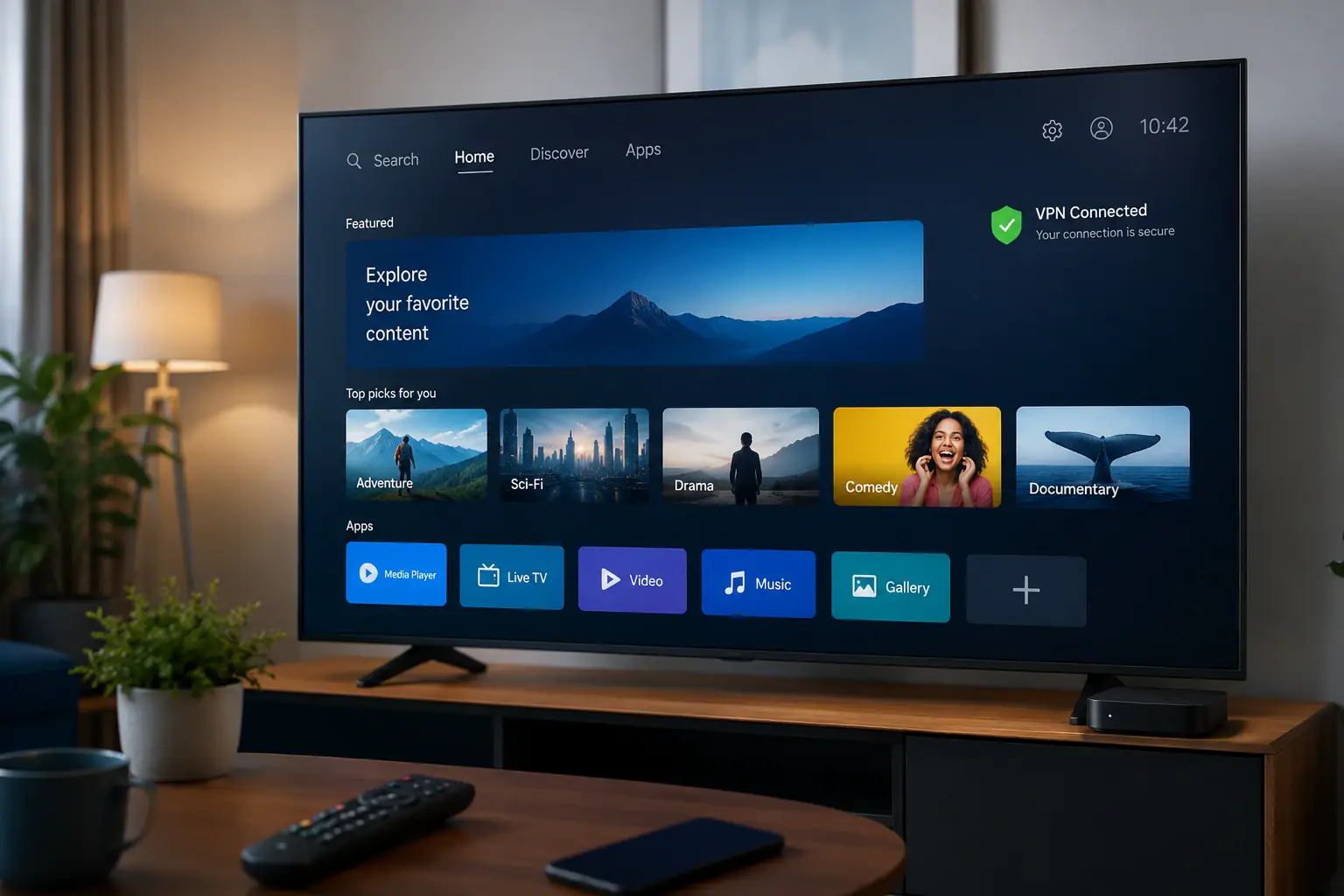
Download Pivot VPN for Android TV
Pivot VPN turns your Android TV into a private, unrestricted streaming hub. The same subscription that protects your phone, laptop and tablet also runs natively on the big screen, so the show you started in the kitchen keeps playing in the living room without re-authenticating, re-routing or losing your kill switch. This page walks you through everything you need to install Pivot VPN on Android TV, configure it for the way you actually watch, and verify that your connection is locked down before you press play.
Who this build is for
This download is for anyone who owns an Android TV device and wants encrypted, location-flexible streaming on the largest screen in the house. That includes Sony Bravia, Hisense, Philips, TCL and Xiaomi smart TVs running the Android TV or Google TV operating system, as well as standalone boxes and dongles such as the Nvidia Shield, Chromecast with Google TV, Xiaomi Mi Box and Walmart Onn. If your remote has the Google Assistant button and you sign in with a Google account on the device, you are on Android TV and this build is for you.
It is also for households that already use Pivot VPN on a phone, laptop or desktop and want the same protection on the TV without buying a separate plan. One Pivot VPN subscription covers Android, iOS, Windows, macOS, Linux and Android TV simultaneously, so the family television is just another slot on the account you already pay for.
System requirements
Pivot VPN for Android TV is intentionally lightweight. The app runs on Android TV 7.0 (Nougat) and newer, which covers every certified Android TV and Google TV device sold in the last several years. You will need roughly 80 MB of free storage for the install, an active internet connection (Wi-Fi or Ethernet) and a Google account signed in on the TV so you can reach the Play Store. There are no special CPU, RAM or GPU requirements beyond what your TV already needs to stream in HD or 4K.
If your device is an older Amazon Fire TV, it runs Fire OS rather than Android TV, and you should use the dedicated Pivot VPN Android build via sideload instead. Everything below assumes a true Android TV or Google TV device.
Install Pivot VPN from Google Play on your TV
The cleanest, safest way to get Pivot VPN on Android TV is straight from the Google Play Store on the TV itself. No sideloading, no APK files, no developer mode required.
- From the Android TV home screen, scroll to the Apps row and open the Play Store. On Google TV, press the magnifier or say “Open Play Store” into the remote.
- Use the search field and type “Pivot VPN”. You can also dictate it with the microphone button.
- Select the official Pivot VPN listing. Confirm the developer name matches the publisher shown on this page before installing.
- Press Install. The download is small and usually finishes in under a minute on a normal home connection.
- When the install completes, choose Open, or return to the home screen and launch Pivot VPN from the Apps row.
- Optional but recommended: long-press the Pivot VPN tile and move it to the front of the Apps row so it is always one click away from the home screen.
If the Play Store on your TV cannot find the app, your device may be too old or running a non-certified build of Android. In that case, install Pivot VPN on your phone first, then use the Play Store website in a browser and push the install to your TV from the device picker.
First launch walkthrough
The first time you open Pivot VPN on Android TV, the app guides you through a short setup designed for a remote, not a touchscreen. Every button is reachable with the D-pad and the OK key.
Sign in with the same email and password you use on your phone or laptop. If this is your first Pivot VPN install on any device, you can create an account directly on the TV, but most people find it faster to sign up on a phone and then enter the credentials here.
Next, Android grants the VPN permission. A system dialog appears asking whether to allow Pivot VPN to set up a VPN connection. Select OK. This dialog only appears once per install.
Finally, pick a server. The default Smart Location chooses the fastest server near you, which is the right choice for general privacy and faster streaming. If you want a specific region, scroll through the country list and select one. Press the large Connect button, wait for the status to turn green, and your TV is now routing traffic through the encrypted tunnel.
Android TV specific settings worth turning on
Two Android TV system settings turn Pivot VPN from “good when you remember to launch it” into “always on, no thinking required.”
Always-on VPN keeps the tunnel active any time the TV is online. Open the TV’s Settings, go to Network and Internet, then VPN, and select Pivot VPN. Toggle Always-on VPN to on. From this point forward, the TV will refuse to send traffic unless Pivot VPN is connected.
Block connections without VPN, often called the kill switch, sits right under Always-on VPN in the same menu. Enable it. Now if the VPN connection ever drops, the TV will simply pause network traffic instead of leaking your real IP to streaming services or trackers.
Inside the Pivot VPN app itself, two more settings are worth checking. Auto-connect on boot reconnects the tunnel whenever the TV wakes up, so you never see an “unprotected” few seconds during start-up. Split tunneling lets you exclude specific apps from the VPN, which is useful for casting from a phone on the local network or for region-locked smart-home apps that refuse to work over VPN.
Troubleshooting
Most issues on Android TV come down to three causes, and all of them are quick to fix.
If a streaming app says you are in the wrong region even though Pivot VPN is connected, clear that app’s cache. Settings, then Apps, find the streamer, and choose Clear cache. Streaming apps aggressively remember your last location, and the cache refresh forces them to re-check your IP.
If video buffers or quality drops after connecting, switch to a closer server. Distance to the VPN server is the single biggest factor in streaming speed. Try a server in the same country, or use Smart Location.
If Pivot VPN will not connect at all, the culprit is usually the TV’s date and time being wrong, which breaks the certificate handshake. Open Settings, Device Preferences, Date and time, and enable automatic network time. Reboot the TV and try again.
For everything else, the in-app diagnostics screen generates a one-tap report you can send to Pivot VPN support without typing on the remote.
Post-install security checklist
Before you settle in for a movie, take thirty seconds to confirm the setup is doing its job. Open the Pivot VPN app and verify the status reads Connected with a green indicator and a server location you recognise. Open the TV’s browser, if it has one, or any IP-check app from the Play Store, and confirm the public IP and country match the server, not your home. Back in Android Settings, confirm Always-on VPN and Block connections without VPN are both enabled for Pivot VPN. Finally, restart the TV once. The connection should come back automatically, the kill switch should hold during the boot, and your other devices on the same Pivot VPN account should be unaffected. You are done. Your TV is now as private as your phone and laptop, on the same subscription, with no extra cost per device.
Frequently asked questions
What do I need to run Pivot VPN on Android TV? +
An Android TV or Google TV device running Android 7.0 or newer, around 80 MB of free storage and an internet connection. Almost every Sony, Hisense, TCL, Philips and Xiaomi smart TV sold in the last several years qualifies, as do standalone boxes like the Nvidia Shield and Chromecast with Google TV.
Is it safe to install Pivot VPN from the Play Store? +
Yes. The Android TV build is published by Pivot VPN directly to the Google Play Store, signed by us and reviewed by Google. There is no need to enable developer mode, sideload an APK or trust unknown sources. Always confirm the publisher name on the listing matches the one shown on this download page.
Do I need a separate account for the TV? +
No. The same Pivot VPN account works on Android TV, your phone, your laptop and your tablet at the same time. Sign in on the TV with the credentials you already use, and the subscription, server list and settings sync automatically.
How many devices can I connect on one subscription? +
One Pivot VPN plan covers multiple simultaneous devices across Android, iOS, Windows, macOS, Linux and Android TV. You can stream on the TV, browse on a laptop and check email on a phone at the same time without disconnecting anything.
Will Pivot VPN slow down 4K streaming? +
Modern protocols add only a small overhead, and on a typical home connection you will not notice it for HD or even 4K playback. If you do see buffering, pick a server geographically closer to you, or let Smart Location choose for you. Wired Ethernet on the TV also helps more than any VPN setting.
What if a streaming service still says I am in the wrong region? +
Connect to a Pivot VPN server in the region you want, then clear the streaming app's cache under Settings, Apps. Streaming apps remember your previous location aggressively, and a cache reset forces them to re-detect your IP through the VPN tunnel.
Get Pivot VPN — free for 7 days
No credit card upfront. Cancel anytime.
Try Pivot VPN