
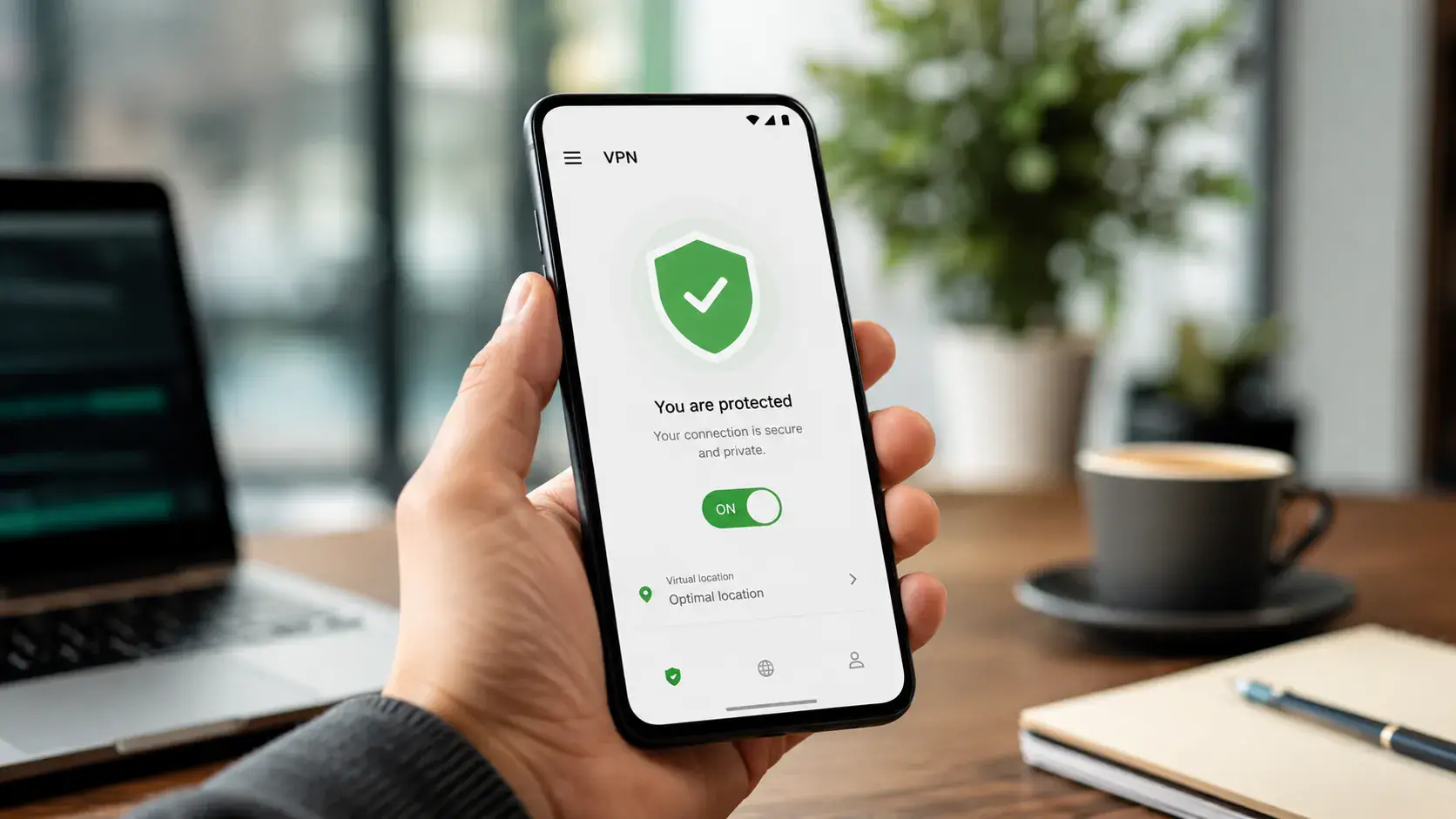
Download Pivot VPN for Android
Pivot VPN turns any Android device into a private, unblocked, region-flexible internet point. This page is everything you need to get the official app onto your phone or tablet, finish the first launch correctly, and lock down the system-level settings that actually keep your traffic protected. The same Pivot VPN account also signs you in on iOS, Windows, macOS, Linux and Android TV — but here we focus on doing the Android install right.
Who this Android build is for
The Android app is built for everyday people who want a real layer of privacy without reading a manual. If you commute on public Wi-Fi, travel between countries, stream content that is geo-locked at home, work with sensitive accounts on a phone, or just don’t want your mobile carrier and random apps logging every domain you touch — this build is for you.
Pivot VPN on Android works equally well for:
- Casual users who want a one-tap on/off switch.
- Travelers who hop between hotel networks, airport Wi-Fi and foreign SIMs.
- Streamers who want stable speeds on cellular and home broadband.
- Power users who want always-on VPN, split tunneling and a system-wide kill switch.
- Households that share one subscription between a phone, a laptop and a TV.
You don’t need to be technical. The defaults are safe; the advanced switches are there when you want them.
Android system requirements
Pivot VPN supports a wide range of Android devices so older phones don’t get left behind:
- Android 7.0 (Nougat) or newer on phones and tablets.
- ARM, ARM64 and x86_64 architectures.
- Roughly 60 MB of free storage for the app and its cache.
- A working Google Play Services install for updates (the app also runs without Play on de-Googled devices via the direct APK).
- Google Play access if you want auto-updates and one-tap install.
The app respects battery optimization rules, runs on a single persistent VPN service, and uses modern protocols so it stays light on RAM and battery even on entry-level hardware.
Install Pivot VPN from Google Play (step by step)
The cleanest way to install on Android is straight from the Play Store. The package is signed, the updates are automatic, and there is nothing to sideload.
- Open the Google Play Store on your Android device.
- Tap the search bar at the top and type “Pivot VPN”.
- Pick the official listing — publisher name will match the one shown on this site, and the app icon is the Pivot mark on a dark background.
- Tap Install and wait for the download to finish. On a normal connection this takes well under a minute.
- Tap Open, or find the new Pivot VPN icon on your home screen / app drawer.
- On first launch, accept the standard VPN permission prompt when Android asks “Connection request — Pivot VPN wants to set up a VPN connection”. This is the system dialog that gives the app the right to route your traffic; without accepting it, no VPN app on Android can work.
If you don’t have Play Store access, grab the signed APK from the official download page on the Pivot VPN site, allow installation from your browser in Android Settings → Apps → Special access → Install unknown apps, then open the downloaded file. The signing key is the same as the Play build, so updates from either source line up.
First-launch walkthrough
The first 60 seconds inside the app decide whether your protection is real or theoretical. Follow this and you’ll be set.
- Open Pivot VPN. You’ll land on the main screen with a large connect button in the center.
- Sign in with the same email you used to subscribe, or tap “Try free” to start a trial — your account will sync automatically with other devices later.
- The app suggests a fastest server based on latency. Tap Connect. The button will animate, Android will show the small key icon in the status bar, and you’re protected.
- Open the server list (globe icon) to browse locations by country and city. Pin your favorites with the star — they jump to the top.
- Run a quick check: load any “what is my IP” site in your browser. The IP and country should match the server you chose, not your real location.
That’s the basic loop. Everything else — kill switch, always-on, split tunneling — is layered on top of this working connection.
Android-specific system settings (the part that actually matters)
Two settings in Android itself, not in the app, are what make a VPN bulletproof on a phone. Turn both on after your first successful connection.
Always-on VPN. Forces Android to route all traffic through Pivot VPN, including the brief moments when the app is waking up after a reboot. Path: Settings → Network & Internet → VPN → tap the gear next to Pivot VPN → enable Always-on VPN.
Block connections without VPN (system kill switch). Right under Always-on. When enabled, Android refuses to send any packet outside the tunnel — if the VPN drops, apps simply have no internet until it comes back. This is the only true leak-proof setup on Android, and it works even if the Pivot app is killed by the OS.
Inside the Pivot VPN app you also get:
- Split tunneling. Pick apps that should bypass the VPN (banking apps that hate foreign IPs, local food delivery, etc.) or apps that should only use the VPN.
- Protocol selector. Auto is fine for everyone; switch to the lightweight protocol on weak networks or the obfuscated one on restrictive networks.
- Auto-connect on untrusted Wi-Fi. The app whitelists your home and work networks and turns itself on the moment you join an unknown SSID.
- Battery and data widgets. A 1x1 home-screen tile that connects and disconnects without opening the app.
Troubleshooting
Most Android issues come down to three things: a stuck VPN permission, aggressive battery optimization, or a flaky server. Try these in order.
- App opens but won’t connect. Toggle airplane mode for five seconds, then try again. If the failure repeats, switch server (any other city) and switch protocol to Auto.
- “VPN connection failed” on boot. Disable battery optimization for Pivot VPN: Settings → Apps → Pivot VPN → Battery → Unrestricted. Reboot.
- Slow speeds on cellular. Pick a server geographically closer to you and switch protocol to the lightweight option. Mobile networks often throttle one protocol but not another.
- No internet at all when connected. You probably have Block connections without VPN enabled and the tunnel is mid-reconnect — wait 10 seconds. If it persists, disable that setting, reconnect, then turn it back on.
- App keeps getting killed in the background. Some Android skins are aggressive. Lock Pivot VPN in your recent apps list and add it to the “protected apps” list in your manufacturer’s battery menu.
- Streaming app says “VPN detected”. Switch to a server marked for streaming and clear the streaming app’s cache. The detection is usually IP-list based and rotates per server.
Post-install security checklist
Run this once and you’re done worrying:
- Always-on VPN is enabled in Android settings.
- Block connections without VPN is enabled.
- Auto-connect on untrusted Wi-Fi is on inside the app.
- Battery optimization for Pivot VPN is set to Unrestricted.
- Notifications for Pivot VPN are enabled so you see disconnect alerts.
- Your Pivot account email has a strong, unique password.
- You’ve signed in on at least one other device (laptop or TV) to confirm the subscription covers your whole setup.
Do this once and your Android device is genuinely private — not “VPN icon in the status bar” private, but actually leak-proof.
Frequently asked questions
What are the system requirements for Pivot VPN on Android? +
Pivot VPN runs on Android 7.0 (Nougat) and newer, on ARM, ARM64 and x86_64 chips. It needs roughly 60 MB of free storage and a working internet connection for the first sign-in. The same account can later be used to sign in on iOS, Windows, macOS, Linux and Android TV without buying anything extra.
Is the Pivot VPN Android app safe to install, and where should I download it from? +
The safest source is the official Google Play listing under the Pivot VPN publisher name — the build there is signed and auto-updated. If you can't use Play Store, download the signed APK directly from the Pivot VPN website; it uses the same signing key as the Play build. Avoid third-party APK mirrors, they are the most common source of tampered VPN apps.
Do I need to create a separate account for the Android app? +
No. One Pivot VPN account works everywhere — sign in on Android with the same email you used on any other platform and your subscription, server favorites and trial status sync automatically. If you're brand new, you can start the trial right from the Android app and then add your laptop or TV later.
How many devices can I use with one Pivot VPN subscription? +
A single Pivot VPN subscription covers all your personal devices in parallel — phone, tablet, laptop, desktop and TV. You don't need a separate plan for Android; just install the matching Pivot VPN app on each platform (iOS, Windows, macOS, Linux, Android TV) and sign in.
Will Pivot VPN slow my Android phone down? +
On modern protocols the speed loss is small — usually a few percent on Wi-Fi and barely noticeable on 4G/5G. The app is optimized to use one persistent VPN service so it doesn't drain battery, and you can switch to a lightweight protocol on weak networks to keep latency low while gaming or streaming.
Can I use Pivot VPN on Android in countries with restricted internet? +
Yes. The Android app includes an obfuscated protocol designed for restrictive networks, plus auto-connect on untrusted Wi-Fi so the tunnel comes up the moment you join a hotel or airport network abroad. If a particular server is blocked, switch city in the server list — connections rotate per server, so a different endpoint usually goes through immediately.
Get Pivot VPN — free for 7 days
No credit card upfront. Cancel anytime.
Try Pivot VPN